
Professional WordPress maintenance control with precise visitor targeting.
Titanium Maintenance Mode gives WordPress four clear public states: Normal, Visitor Service Notice, Coming Soon and Maintenance Mode. Free includes proper HTTP 503 handling, branded responsive pages, ready-made service notices, administrator access controls and cache integrations. Pro adds reusable custom notices, date and time scheduling, countdowns and powerful AND/OR targeting for visitors, content, WooCommerce, memberships and learning platforms.
- Four clear website states
- Proper HTTP 503 + Retry-After
- Scheduling and countdowns in Pro
- Up to 1,000 Pro conditions
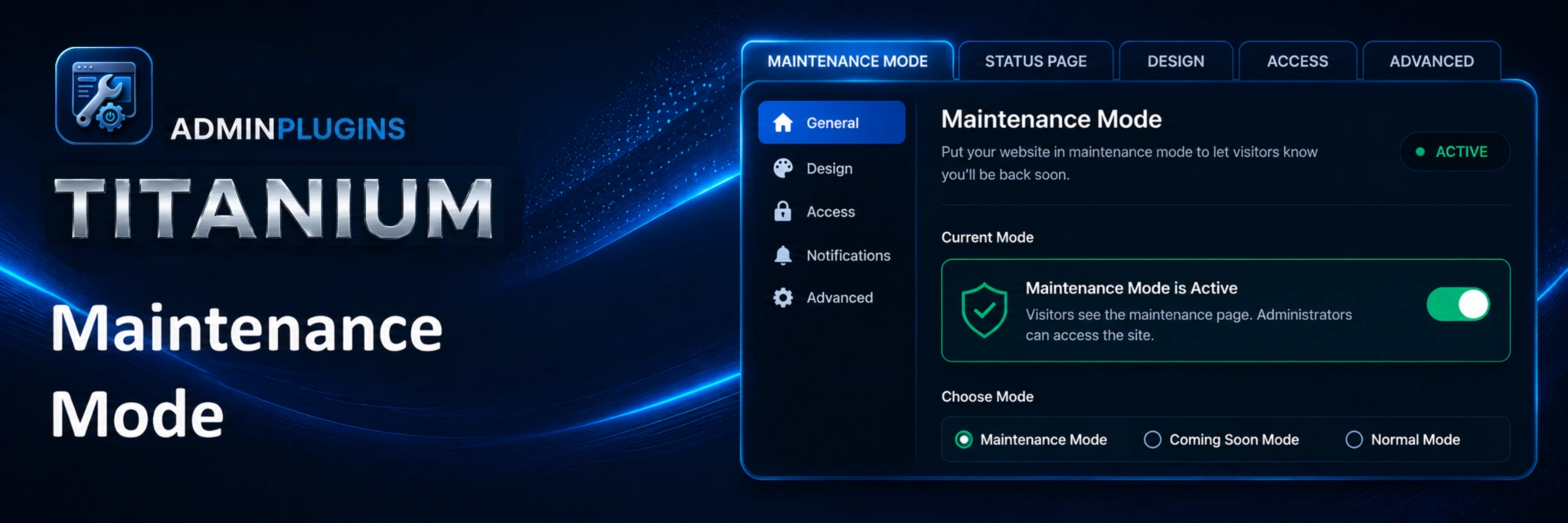
A complete Free maintenance and Coming Soon plugin is available on WordPress.org.
Free includes Normal, Visitor Service Notice, Coming Soon and Maintenance Mode, proper HTTP 503 responses, four ready-made service notices, separate branded public pages, an optional login button, administrator access controls, responsive output, admin dark mode and supported page-cache purging. Upgrade to Pro when you need schedules, reusable notices and precise conditional targeting.
Everything needed to control how visitors see your site.
Free covers the essential maintenance, launch and service-notice workflow. Pro adds automation and deep targeting without requiring custom code.
Four clear website states
Switch between Normal, Visitor Service Notice, Coming Soon and Maintenance Mode. Only one public state can be active at a time.
Proper maintenance responses
Maintenance Mode returns HTTP 503 with Retry-After and no-cache handling, while Coming Soon uses an indexable HTTP 200 response.
Branded responsive pages
Customize titles, messages, logos, background colours, accent colours and an optional internal login button for public maintenance and launch pages.
Visitor Service Notices
Show a non-blocking banner above the live website. Free includes ready-made hosting, performance, feature and service disruption messages.
Reusable notices in Pro
Create and manage up to 500 reusable custom visitor notices with separate headings and messages.
Scheduling and countdowns
Pro supports start and end dates, weekdays, daily or overnight time windows, site-timezone handling and an optional countdown that reloads when maintenance ends.
Advanced AND/OR targeting
Build up to 1,000 validated conditions using AND inside groups and OR between groups for login state, roles, capabilities, content, URLs, devices, browsers and more.
Commerce and membership rules
Pro can target WooCommerce pages and customer history plus PMPro, MemberPress, WooCommerce Memberships, Restrict Content, Paid Member Subscriptions, LifterLMS and LearnDash.
Free vs Pro
Free is a complete maintenance, Coming Soon and service-notice plugin. Pro adds reusable content, scheduling and extensive conditional targeting.
Compare plans
See what is included in Free and what unlocks in Pro.
| Feature | Free | Pro |
|---|---|---|
| Included in Free and Pro | ||
| Normal, Visitor Service Notice, Coming Soon and Maintenance ModeOnly one public website mode can be active at a time. | ✓ | ✓ |
| HTTP 503 maintenance responseSends Retry-After, no-cache and search-engine headers when WordPress can still send headers. | ✓ | ✓ |
| Four ready-made Visitor Service NoticesHosting, performance, feature outage and service disruption presets. | ✓ | ✓ |
| Maintenance page customizationSet the title, message, logo, background colour and accent colour. | ✓ | ✓ |
| Custom login button and internal login URLUse the default WordPress login or a short path such as /login. | ✓ | ✓ |
| Automatic login-page accessThe exact internal login page stays reachable while the login button is enabled. | ✓ | ✓ |
| Administrator inclusion, bypass and remindersChoose whether administrators see the public mode and show a colour-coded frontend reminder. | ✓ | ✓ |
| Responsive output and admin dark modeResponsive public maintenance output with a light or dark administration interface. | ✓ | ✓ |
| Supported page-cache purgingLiteSpeed Cache, WP Rocket, WP Super Cache and W3 Total Cache integrations. | ✓ | ✓ |
| Transaction-protected settings and multisite lifecycleVerified rollback plus bounded activation, reset and uninstall processing. | ✓ | ✓ |
| Additional Pro features | ||
| Reusable Custom NoticesCreate and manage up to 500 reusable visitor notice headings and messages. | × | ✓ |
| Date and time schedulingSchedule Maintenance Mode or Visitor Service Notice with dates, weekdays, daily windows, overnight ranges and the site timezone. | × | ✓ |
| Schedule countdownShow the remaining time and reload the page automatically when maintenance ends. | × | ✓ |
| Advanced AND / OR condition groupsTarget Maintenance Mode or Visitor Service Notice with up to 1,000 validated AND / OR conditions. | × | ✓ |
| Login status, role and capability conditionsTarget logged-in/out visitors, standard or custom roles, and WordPress capabilities. | × | ✓ |
| Specific content conditionsTarget pages, posts, products and other public custom content items. | × | ✓ |
| WordPress page-type and archive conditionsFront page, posts page, blog home, search, 404, singular content, archives and post-type archives. | × | ✓ |
| Taxonomy archive and term conditionsTarget public taxonomy archives and specific taxonomy terms. | × | ✓ |
| URL, query, device and browser conditionsTarget paths, query parameters, mobile/desktop devices and common browsers. | × | ✓ |
| WooCommerce page and account conditionsShop, product, cart, checkout, My Account and individual account endpoints. | × | ✓ |
| WooCommerce product and taxonomy conditionsSpecific products, product categories and product tags. | × | ✓ |
| WooCommerce customer-history conditionsPreviously purchased products and active WooCommerce Subscription products. | × | ✓ |
| Membership and learning integrationsPMPro, MemberPress, WooCommerce Memberships, Restrict Content / Pro, Paid Member Subscriptions, LifterLMS and LearnDash. | × | ✓ |
| Membership status conditionsSupported active, inactive, expired, cancelled, pending, paused, trial, complimentary and other recorded states. | × | ✓ |
Simple annual pricing
Choose the license that fits your site count. Every Pro plan includes all Pro features, updates and premium support.
1 Site
For one WordPress site.
- All Pro features
- Use on 1 site
- Updates and support
3 Sites
For small client setups.
- All Pro features
- Use on 3 sites
- Updates and support
5 Sites
For active site owners and small agencies.
- All Pro features
- Use on 5 sites
- Updates and support
10 Sites
For freelancers and growing client work.
- All Pro features
- Use on 10 sites
- Updates and support
20 Sites
For larger client portfolios.
- All Pro features
- Use on 20 sites
- Updates and support
50 Sites
For agencies managing many sites.
- All Pro features
- Use on 50 sites
- Updates and support
Frequently asked questions
Answers for site owners, agencies, stores and membership websites before installing Titanium Maintenance Mode.
Where can I get the Free version?
Install it from WordPress.org: Titanium Maintenance Mode.
Which website states are included in Free?
Free includes Normal, Visitor Service Notice, Coming Soon and Maintenance Mode. Only one public state can be active at a time.
What is the difference between Coming Soon and Maintenance Mode?
Coming Soon is an available launch placeholder and uses HTTP 200. Maintenance Mode represents a temporary outage and returns HTTP 503 with Retry-After when WordPress can still send headers.
What is Visitor Service Notice?
It is a non-blocking notice displayed above eligible public frontend pages while the rest of the website stays available. Free includes four ready-made service notice messages.
Can I customize the maintenance and Coming Soon pages?
Yes. You can set separate titles, messages, logos, background colours, accent colours and an optional login button.
Can I use a custom internal login URL?
Yes. You can use the normal WordPress login or a short internal path such as /login. The exact configured page remains reachable while the login button is enabled.
Can administrators still see the normal website?
Yes. You can choose whether administrators receive the selected public mode or bypass it. A colour-coded reminder can also be shown on the frontend and inside wp-admin.
Does it work with page caching?
The plugin marks eligible public mode responses as non-cacheable and can purge LiteSpeed Cache, WP Rocket, WP Super Cache and W3 Total Cache after relevant changes. Server-level caches and external CDNs may still need their own purge controls.
What does Pro scheduling include?
Pro supports start and end dates, selected weekdays, daily time windows, overnight schedules and WordPress-site timezone handling for Maintenance Mode and Visitor Service Notice.
Can a countdown be shown during scheduled maintenance?
Yes. Pro can display the remaining time and automatically reload the page when the scheduled maintenance window ends.
How many custom notices can Pro store?
Pro can manage up to 500 reusable Custom Notices with separate headings and messages.
How does Pro conditional logic work?
Conditions inside a group use AND logic, while separate groups are combined with OR logic. Pro supports up to 1,000 validated conditions.
Can I target logged-in or logged-out visitors?
Yes. Pro can target login state, standard or custom WordPress roles and WordPress capabilities.
Can I target specific pages or posts?
Yes. Pro can target specific pages, posts, products and other public custom content, plus front page, posts page, blog home, search, 404, singular views and archives.
Can I target URL paths, query parameters or devices?
Yes. Pro supports URL-path and query-parameter rules plus mobile/desktop and common browser targeting.
What WooCommerce conditions are included?
Pro can target the shop, product, cart, checkout, My Account and account endpoints, product categories and tags, specific products, previously purchased products and active WooCommerce Subscription products.
Which membership plugins are supported?
Pro includes targeting integrations for Paid Memberships Pro, MemberPress, WooCommerce Memberships, Restrict Content / Pro and Paid Member Subscriptions.
Are learning platforms supported?
Yes. Pro includes LifterLMS and LearnDash course or group targeting where the integration provides the required information.
Can membership status be used as a condition?
Yes. Supported integrations can expose active, inactive, expired, cancelled, pending, paused, trial, complimentary and other recorded states.
What happens if Pro becomes unavailable?
The premium modules stop loading, while the included Free behaviour and shared settings remain available.
Does the public maintenance page send visitor data externally?
No. The Coming Soon, Maintenance Mode and Visitor Service Notice frontend runtime does not send visitor data to AdminPlugins or Freemius.
Does the plugin support multisite?
Yes. The lifecycle and cleanup code uses bounded processing so activation, reset and uninstall work can continue safely on larger multisite networks.
Do all Pro license sizes include the same features?
Yes. The only difference between Pro plans is the number of websites covered by the license.
10 practical ways to control WordPress access with clear visitor modes.
These beginner-friendly tutorials explain how to use Visitor Service Notice, Coming Soon and Maintenance Mode, customize public pages, keep administrator and login access under control, test the result safely and work with page caching. The final tutorials show how Pro adds scheduling, countdowns, reusable notices and advanced AND/OR targeting for users, content, URLs, devices, WooCommerce, memberships and learning platforms.
- Visitor Service Notice
- Coming Soon
- Maintenance Mode
- Pro schedules & targeting
Step-by-step WordPress maintenance tutorials.
Start with the Free workflow, test each public state as a visitor, then add Pro automation only when you need scheduled or targeted behaviour.
How to install Titanium Maintenance Mode and choose the right website state
Titanium starts with the website operating normally. From one selector you can switch between Normal, Visitor Service Notice, Coming Soon and Maintenance Mode. Only one public state can be selected at a time, so there is no need to manage several conflicting maintenance switches.
A safe first setup
- Install and activate Titanium Maintenance Mode from the WordPress Plugins screen.
- Open Maintenance Mode → Settings.
- Leave Current website mode set to Normal while you review and prepare the other settings.
- Choose Visitor Service Notice when the site should remain fully usable but visitors need an operational warning.
- Choose Coming Soon when visitors should see a launch page while the website is being prepared.
- Choose Maintenance Mode when public visitors should temporarily receive the dedicated maintenance page.
- Press Save Changes after selecting and configuring the required mode.
How to warn visitors without taking the website offline
Visitor Service Notice is designed for degraded service rather than a closed website. Visitors can continue browsing while a prominent orange service update explains what is happening. Free includes four ready-made operational messages.
Enable a service notice
- Open Maintenance Mode → Settings.
- Set Current website mode to Visitor Service Notice — Website remains accessible.
- In Visitor Service Notice Message, choose the preset that best matches the problem.
- Use Hosting or server issue for infrastructure problems, Slower website performance for degraded speed, Some features unavailable for a partial outage, or Temporary service disruption for a broader service problem.
- Decide whether administrators should also see the large visitor notice on frontend pages.
- Leave the wp-admin reminder enabled if you want a visible reminder while the notice is active.
- Press Save Changes and check the site in a logged-out or private browser window.
How to build a branded Coming Soon page before launch
Coming Soon gives visitors a dedicated launch page while you continue preparing the website. It has its own title, message, logo, background and accent colours, plus an optional login button. Unlike Maintenance Mode, the Coming Soon response is HTTP 200.
Create the launch page
- Set Current website mode to Coming Soon — Show a launch page.
- Enter the Page title that visitors should see as the main launch heading.
- Add a short Message explaining what is coming or when visitors should return.
- Choose a logo from the WordPress Media Library. If no logo is selected, Titanium shows its animated launch graphic.
- Choose the Background color and Accent color to match the website brand.
- Enable Show login button only if editors, clients or administrators need a visible way to reach a login page.
- Press Save Changes, then view the site while logged out.
How to enable Maintenance Mode without sending the wrong status to search engines
Maintenance Mode is for a temporary outage or planned work. Titanium replaces eligible public frontend requests with the maintenance page and, while WordPress can still send headers, returns HTTP 503 with Retry-After and noindex/nofollow handling.
Configure and activate maintenance
- Set Current website mode to Maintenance Mode — Temporarily close the website.
- Enter a clear Page title such as “Planned maintenance” or “We’ll be back shortly”.
- Add a short Message that tells visitors what to expect without exposing internal technical details.
- Choose a logo if required. If no logo is selected, the default maintenance icon is displayed.
- Set the Background color and Accent color.
- Choose whether to show a login button and whether administrators should also receive the maintenance page.
- Press Save Changes and verify the result from a logged-out browser.
How to keep login access and administrator visibility under control
A maintenance plugin must not lock the site owner out. Titanium separates public visitor behaviour from administrator frontend behaviour and can keep one exact internal login page reachable when the login button is enabled.
Configure safe access
- Choose Coming Soon or Maintenance Mode so its page customization panel becomes visible.
- Enable Show login button if visitors such as staff or clients should have a visible login route.
- Leave Login page URL empty to use the normal WordPress login page.
- If the site uses a custom login page, enter an internal path such as /login or a full URL on the same website.
- Keep Apply the selected public mode to administrators disabled if administrators should continue seeing the normal frontend while logged in.
- Enable Show the mode reminder on WordPress admin pages so active modes are harder to forget.
- Save the settings and test both a logged-in administrator session and a logged-out private window.
How to test Maintenance Mode without being fooled by your login session or page cache
Administrators may intentionally bypass the public mode, so testing only in the same logged-in browser can give the wrong impression. Titanium also integrates with common page-cache plugins and disables caching for its active public responses.
A reliable testing order
- Configure the desired mode and press Save Changes.
- Open a private/incognito window where you are not logged into WordPress.
- Check the homepage and at least one inner public page.
- If a login button is enabled, confirm that the button opens the expected internal login page.
- Return to the normal administrator browser and confirm that the reminder matches the active public mode.
- When switching back to Normal, check the logged-out site again so you know visitors are seeing the normal frontend.
- If WordPress reports that a supported cache could not be purged, clear that cache manually before judging the public result.
How to schedule a public mode by date, weekday and daily time window
Pro evaluates the schedule before conditional targeting. The schedule uses the WordPress site timezone and can control the currently selected non-Normal public mode. You can combine absolute start/end dates with selected weekdays and daily or overnight time windows.
Create a schedule
- Select the public mode you want to automate: Visitor Service Notice, Coming Soon or Maintenance Mode.
- In Schedule and Conditional Logic, enable Schedule.
- Set Start date and time if the mode should not become eligible before a specific moment.
- Set End date and time if the scheduled period should stop at a specific moment.
- Select Active weekdays when the mode should apply only on certain days. Leaving every weekday unselected means every day.
- Use Daily start and Daily end for a recurring window. An overnight range such as 22:00–06:00 continues into the following morning.
- For a maintenance page, enable Show countdown to the scheduled end date and time when a future absolute End date and time is configured.
- Save Changes and test the schedule using the site’s configured WordPress timezone.
How to target Maintenance Mode with AND conditions and OR groups
Pro can target the selected public mode instead of applying it to every visitor. Conditions inside one group use AND logic, while separate groups are alternatives joined with OR. The plugin supports up to 1,000 validated conditions.
Build a simple targeting rule
- Choose the public mode you want to target and open Schedule and Conditional Logic.
- Enable Conditional Logic.
- In the first Rule group, choose a Condition type such as User login status, WordPress user role, Specific page, URL path, Device or Browser.
- Select the appropriate operator such as is, is not, equals, contains or starts with.
- Choose or enter the required value.
- Use Add AND condition when the same group needs another requirement that must also match.
- Add another Rule group when you want an alternative route. A visitor matches when every condition in at least one group matches.
- Save Changes and test one matching visitor/request and one request that should not match.
How to target WooCommerce customers, members and learning users
When supported plugins are active, Pro adds condition types that understand commerce, memberships and learning access. This allows a maintenance or service state to react to customer history or plan access without writing custom PHP.
Build an integration-based rule
- Confirm that the WooCommerce, membership or LMS plugin you want to target is active.
- Enable Conditional Logic in Titanium Maintenance Mode Pro.
- Choose a WooCommerce condition for shop, product, cart, checkout, My Account, product taxonomy, a specific product, customer purchase history or an active WooCommerce Subscription product.
- For membership targeting, choose the matching integration and search for the required level, membership, plan, course or group.
- Select a supported status when the integration offers status targeting, such as active, inactive, expired, cancelled, pending, paused or another supported recorded state.
- Combine the integration condition with other AND rules when necessary, for example login status or a specific URL.
- Save Changes and test with a real user account that should match and another account that should not.
How to create reusable Visitor Service Notice messages
Pro adds a separate Custom Notices library so recurring incidents do not have to be rewritten each time. Each notice has a large heading and a smaller explanatory message, then becomes available in the Visitor Service Notice selector after the library is saved.
Create and use a custom notice
- Open Maintenance Mode → Custom Notices.
- Press Add Custom Notice.
- Enter the Large heading that should be prominent in the orange visitor bar.
- Enter the Smaller message explaining what visitors should expect and when they should try again.
- Use the live preview to check the wording before saving.
- Press Save Notice Library. Pro can store up to 500 reusable notices.
- Return to Maintenance Mode → Settings and choose Visitor Service Notice as the current website mode.
- Select the saved custom message from the Visitor Service Notice dropdown and press Save Changes.
Start with the simplest public state that matches the real situation.
Free covers Normal mode, non-blocking service notices, a branded Coming Soon page, proper HTTP 503 maintenance handling, login access, administrator bypass/reminders and supported cache purging. Pro adds reusable notices, date and time scheduling, maintenance countdowns and advanced AND/OR targeting across WordPress, WooCommerce, memberships and learning platforms.
Need scheduled or targeted maintenance?
Use Titanium Maintenance Mode Pro when the public mode must activate only at selected times or for specific users, pages, URLs, devices, WooCommerce customers, membership plans or learning access — with reusable service notices available when you need them.
View Pro Pricing