
Keep the site online with selective service control.
Titanium Service Zones lets you put only the affected part of WordPress into a Service Notice or HTTP 503 Maintenance state while the rest of the website stays available. Free includes up to three independent zones, Page and URL-path targeting, Impact Preview, Safety Check, overlap detection, Operational exceptions and an optional public service-status page. The existing Whole-Site Status controls remain available, while Pro adds the current scheduling, countdown, reusable notices and advanced AND/OR targeting tools.
- 3 Service Zones in Free
- Impact Preview + Safety Check
- HTTP 503 only where needed
- Pro scheduling + advanced targeting
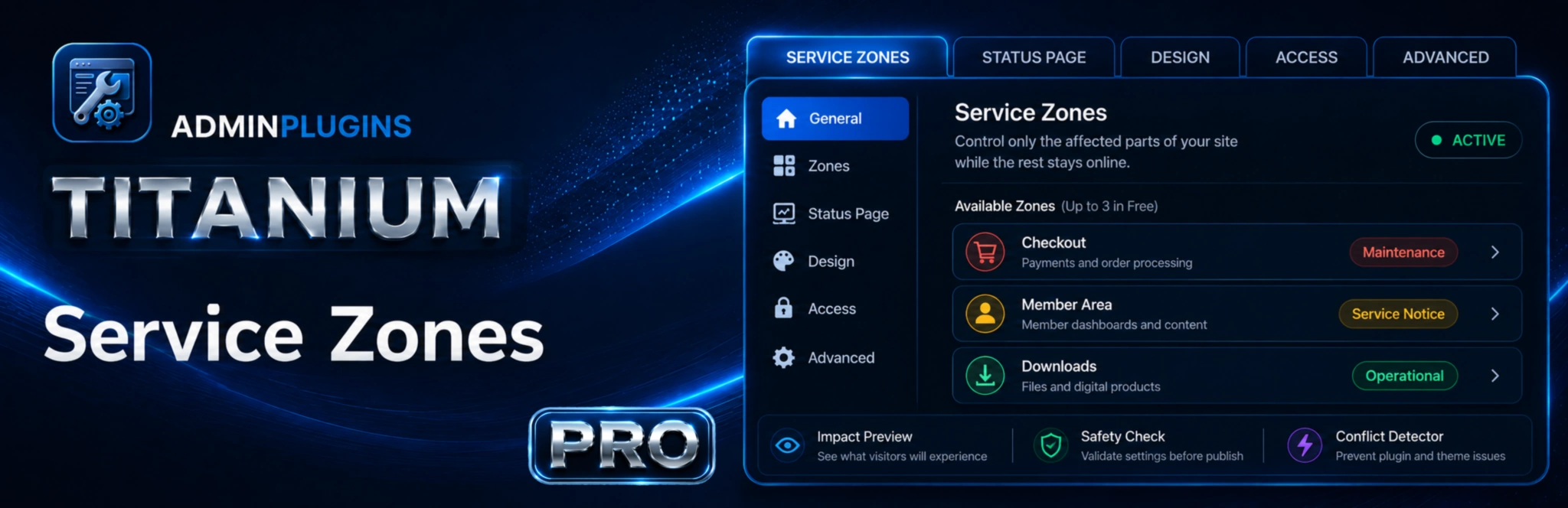
Selective Service Zones are included in Free.
Create up to three independent zones for a WordPress Page or URL path. Keep each area Operational, show a Service Notice, or return HTTP 503 Maintenance while unrelated parts of the site stay online. Free also includes Impact Preview, Safety Check, Conflict Detection, optional Public Service Status and the original Whole-Site Status controls.
Control only the part of WordPress that is affected.
Service Zones are designed for partial outages and planned work where taking the whole website offline would be unnecessary.
Three Service Zones in Free
Create up to three independent areas with their own Operational, Service Notice or Maintenance state while the rest of the website keeps working.
Page and path targeting
Select a published WordPress Page, an exact URL path or a trailing-* prefix such as /account/* without writing custom PHP.
Impact Preview + Safety Check
Preview known matching Pages before activation and receive warnings for broad, protected or transaction-related routes.
Conflict-aware priority
Overlapping zones are detected and resolved deterministically. More-specific targets win, including Operational exceptions inside broader maintenance paths.
Automatic Public Service Status
Optionally publish a read-only /service-status/ page and JSON status endpoint without exposing private target paths or matching rules.
Whole-Site Status still included
Use Normal, Visitor Service Notice, Coming Soon or Maintenance Mode when the complete website really should change at once.
Correct HTTP and cache behaviour
Matched Maintenance Zones and whole-site maintenance return proper HTTP 503 handling, while supported WordPress page caches can be purged after changes.
Existing Pro automation
Pro keeps reusable Custom Notices, scheduling, countdowns and up to 1,000 AND/OR conditions across WordPress, WooCommerce, memberships and LMS integrations.
Free vs Pro
Service Zones are part of the shared Free core. Pro currently adds the existing automation and targeting tools; it does not increase the three-zone limit in this release.
Compare plans
See exactly what is included in the shared core and what unlocks in Pro.
| Feature | Free | Pro |
|---|---|---|
| Included in Free and Pro | ||
| Up to three independent Service ZonesKeep unaffected parts of the website online while selected areas use their own Operational, Service Notice or Maintenance state. | ✓ | ✓ |
| WordPress Page and URL path targetingTarget a published Page, an exact path such as /checkout/, or a trailing-* path prefix such as /account/*. | ✓ | ✓ |
| Operational, Service Notice or Maintenance per zoneEach zone has its own public state instead of forcing the complete website into one mode. | ✓ | ✓ |
| Zone-specific visitor title and messageExplain exactly what is affected without changing unrelated sections of the website. | ✓ | ✓ |
| HTTP 503 for matched Maintenance ZonesOnly matched maintenance requests receive the temporary-unavailable response; unaffected URLs keep their normal response. | ✓ | ✓ |
| Maintenance Impact PreviewPreview known published WordPress Pages that match the selected target before activation. | ✓ | ✓ |
| Built-in Safety CheckReceive warnings for very broad, protected WordPress, account, checkout, payment, webhook, callback and similar sensitive-looking routes. | ✓ | ✓ |
| Service Zone Conflict DetectorDetect overlapping zones before relying on them in production. | ✓ | ✓ |
| Deterministic specificity priorityPage targets outrank paths; exact paths outrank wildcard prefixes; longer wildcard prefixes win, and equal targets use the earlier zone. | ✓ | ✓ |
| Operational exceptions inside broader zonesKeep a smaller area live by placing a more-specific Operational zone inside a broader Service Notice or Maintenance path. | ✓ | ✓ |
| Automatic Public Service StatusOptionally publish /service-status/ from Whole-Site Status and configured zone states. | ✓ | ✓ |
| Read-only public JSON statusOptionally expose /wp-json/titanium-service-zones/v1/status without publishing private target paths or internal rules. | ✓ | ✓ |
| Normal, Visitor Service Notice, Coming Soon and Maintenance ModeWhole-Site Status remains available when the complete website should change at once. | ✓ | ✓ |
| HTTP 503 whole-site maintenance responseSends Retry-After, no-cache and search-engine headers when WordPress can still send headers. | ✓ | ✓ |
| Four ready-made Visitor Service NoticesHosting, performance, feature outage and service disruption presets. | ✓ | ✓ |
| Coming Soon and maintenance page customizationSet separate titles, messages, logos, background colours, accent colours and optional login buttons. | ✓ | ✓ |
| Custom login button and internal login URLUse the default WordPress login or a short internal path such as /login. | ✓ | ✓ |
| Administrator inclusion, bypass and remindersChoose whether administrators see the public state and keep clear frontend/wp-admin reminders. | ✓ | ✓ |
| Responsive output and admin dark modeResponsive public output with a light or dark administration interface. | ✓ | ✓ |
| Supported page-cache purgingLiteSpeed Cache, WP Rocket, WP Super Cache and W3 Total Cache integrations. | ✓ | ✓ |
| Transaction-protected settings and multisite lifecycleVerified rollback plus bounded activation, reset and uninstall processing. | ✓ | ✓ |
| Additional Pro features | ||
| Reusable Custom NoticesCreate and manage up to 500 reusable visitor notice headings and messages. | × | ✓ |
| Date and time schedulingSchedule supported Whole-Site Status modes with dates, weekdays, daily windows, overnight ranges and the WordPress site timezone. | × | ✓ |
| Schedule countdownShow the remaining time and reload automatically when the configured maintenance window ends. | × | ✓ |
| Advanced AND / OR condition groupsTarget supported Whole-Site Status modes with up to 1,000 validated AND / OR conditions. | × | ✓ |
| Login status, role and capability conditionsTarget logged-in/out visitors, standard or custom roles and WordPress capabilities. | × | ✓ |
| Specific content conditionsTarget pages, posts, products and other public custom content items. | × | ✓ |
| WordPress page-type and archive conditionsFront page, posts page, blog home, search, 404, singular content, archives and post-type archives. | × | ✓ |
| Taxonomy archive and term conditionsTarget public taxonomy archives and specific taxonomy terms. | × | ✓ |
| URL, query, device and browser conditionsTarget paths, query parameters, mobile/desktop devices and common browsers. | × | ✓ |
| WooCommerce page and account conditionsShop, product, cart, checkout, My Account and individual account endpoints. | × | ✓ |
| WooCommerce product and taxonomy conditionsSpecific products, product categories and product tags. | × | ✓ |
| WooCommerce customer-history conditionsPreviously purchased products and active WooCommerce Subscription products. | × | ✓ |
| Membership and learning integrationsPMPro, MemberPress, WooCommerce Memberships, Restrict Content / Pro, Paid Member Subscriptions, LifterLMS and LearnDash. | × | ✓ |
| Membership status conditionsSupported active, inactive, expired, cancelled, pending, paused, trial, complimentary and other recorded states. | × | ✓ |
Simple annual pricing
Choose the license that fits your site count. Every Pro plan includes all current Pro features, updates and premium support.
1 Site
For one WordPress site.
- All Pro features
- Use on 1 site
- Updates and support
3 Sites
For small client setups.
- All Pro features
- Use on 3 sites
- Updates and support
5 Sites
For active site owners and small agencies.
- All Pro features
- Use on 5 sites
- Updates and support
10 Sites
For freelancers and growing client work.
- All Pro features
- Use on 10 sites
- Updates and support
20 Sites
For larger client portfolios.
- All Pro features
- Use on 20 sites
- Updates and support
50 Sites
For agencies managing many sites.
- All Pro features
- Use on 50 sites
- Updates and support
Frequently asked questions
Answers about selective Service Zones, Whole-Site Status and the current Pro automation tools.
Where can I get the Free version?
Install Titanium Service Zones from WordPress.org using the new titanium-service-zones plugin slug.
What is a Service Zone?
A Service Zone is one selected part of the public website. It can target a WordPress Page, an exact URL path or a trailing-wildcard path prefix and can be Operational, show a Service Notice or return HTTP 503 Maintenance.
How many Service Zones are included in Free?
Three. The same three-zone core is included in Free and Pro; Pro does not increase the Service Zone limit in this release.
Can the rest of the website stay online?
Yes. That is the main purpose of Service Zones. Only the matching area changes state while unrelated public URLs continue normally.
Can I target a WordPress Page instead of typing a URL?
Yes. A zone can target a published WordPress Page directly or use an exact or trailing-* URL-path rule.
How do wildcard paths work?
Use a trailing wildcard such as /account/* to match that path prefix. Query strings are ignored by the zone path matcher.
What does Impact Preview show?
It shows known published WordPress Pages that match the selected target. Dynamic runtime endpoints may not exist as stored Pages, so the preview is intentionally not presented as a complete site crawler.
What does the Safety Check do?
It warns about very broad rules, protected WordPress routes and transaction/account-looking paths such as checkout, payment, webhook, callback, cart and My Account.
What happens when two zones overlap?
The more-specific target wins. Page targets outrank path rules, exact paths outrank wildcard prefixes, longer wildcard prefixes outrank shorter ones, and equal specificity uses the earlier zone.
Can I keep one page live inside a broader maintenance path?
Yes. Create a more-specific Operational zone for that child area. The specificity rule lets it override a broader Service Notice or Maintenance path.
Does a Maintenance Zone return HTTP 503?
Yes. A matched Maintenance Zone returns HTTP 503 with Retry-After and noindex/no-cache handling when WordPress can still send headers.
What is Automatic Public Service Status?
When enabled, Titanium Service Zones publishes a read-only /service-status/ page generated from Whole-Site Status and configured zones.
Does the public status page reveal my URL rules?
No. It exposes configured zone names and current public states, not target paths, selected Page IDs, internal rules or administrator data.
Is there a JSON status endpoint?
Yes, when Automatic Public Service Status is enabled: /wp-json/titanium-service-zones/v1/status.
Can I still put the entire website into Maintenance Mode?
Yes. Whole-Site Status still provides Normal, Visitor Service Notice, Coming Soon and Maintenance Mode. A non-Normal Whole-Site Status takes priority over Service Zones.
What is the difference between Coming Soon and Maintenance Mode?
Coming Soon is an available launch placeholder and uses HTTP 200. Maintenance Mode represents a temporary outage and returns HTTP 503 with Retry-After when headers can still be sent.
What is Visitor Service Notice?
It is a non-blocking notice shown above eligible public frontend pages while the website remains available. Free includes four ready-made notice messages.
Can I customize the maintenance and Coming Soon pages?
Yes. They have separate titles, messages, logos, background colours, accent colours and optional login buttons.
Can administrators still access the normal website?
Yes. The existing administrator visibility setting can bypass the public replacement output while reminders make the active state visible.
Does it work with page caching?
The plugin marks eligible Service Zone and Whole-Site Status responses as non-cacheable and can purge LiteSpeed Cache, WP Rocket, WP Super Cache and W3 Total Cache. External CDN or host-level caches may still require their own purge.
What does Pro scheduling add?
Pro adds start/end dates, selected weekdays, daily and overnight time windows, WordPress-site timezone handling and an optional countdown for supported Whole-Site Status workflows.
How does Pro conditional logic work?
Conditions inside a group use AND logic and separate groups use OR. Pro supports up to 1,000 validated conditions for the existing premium Whole-Site Status targeting system.
What WooCommerce conditions are included in Pro?
Pro can target shop, product, cart, checkout, My Account and account endpoints, products, product taxonomies, purchase history and active WooCommerce Subscription products.
Which membership and learning integrations are supported?
Paid Memberships Pro, MemberPress, WooCommerce Memberships, Restrict Content / Pro, Paid Member Subscriptions, LifterLMS and LearnDash are supported where their required APIs are available.
How many Custom Notices can Pro store?
Up to 500 reusable Visitor Service Notice headings and messages.
What happens if Pro becomes unavailable?
Premium modules stop loading while the complete shared Free core and shared settings remain available.
Do all Pro license sizes include the same features?
Yes. The only difference between Pro plans is the number of websites covered by the license.