
Control WordPress menus with server-side rules.
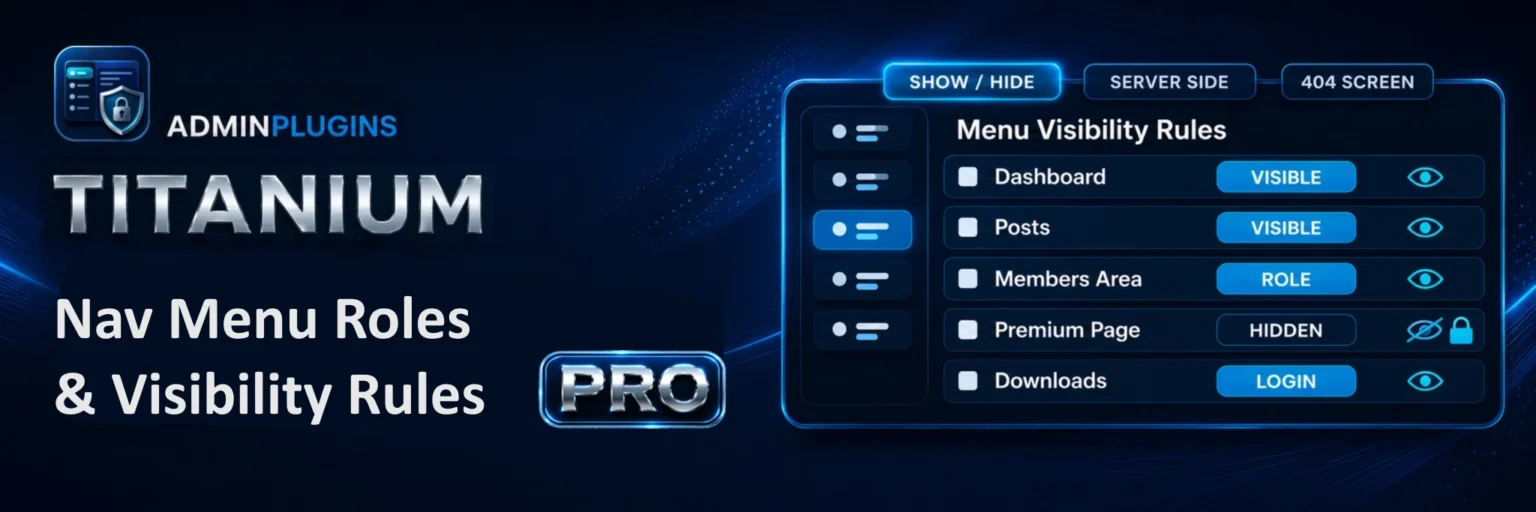
Titanium Nav Menu Roles & Visibility Rules gives you precise server-side control over who can see each WordPress menu item. Pro adds advanced condition groups, membership plugin rules, linked page protection, and professional denied-access handling.
- No CSS hiding
- Role and login rules
- Membership plugin support
- Access Protection
Free version on WordPress.org
Start with the free WordPress.org version for core server-side menu visibility rules. Upgrade to Pro when you need advanced condition groups, membership plugin rules, Access Protection, denied access actions, beta updates, and priority support.
Built for real WordPress membership and client sites.
Use simple rules for everyday menu control, or build advanced Pro logic when one rule is not enough.
Server-side menu hiding
Hide menu items before the page is rendered. No CSS-only tricks.
Role and login rules
Show or hide menu items for logged-in users, logged-out users, or WordPress roles.
Condition groups
Build advanced AND / OR logic without custom snippets.
Membership plugin rules
Control menu visibility by supported membership levels, including Paid Memberships Pro, MemberPress, WooCommerce Memberships, Restrict Content / Pro, and Paid Member Subscriptions.
Access Protection
Protect linked pages from direct URL access using the same Pro menu rules.
Denied access actions
Show a 404 page, redirect to homepage, or redirect to a selected page.
Selectable 404 handling
Use the built-in Pro 404 page or your own custom site/theme 404 page.
Import tools
Import compatible rules from Nav Menu Roles and User Menus.
Free vs Pro
Start with core menu visibility rules in Free. Upgrade to Pro when you need advanced logic, access protection, membership rules, and priority support.
Choose the right version for your workflow.
Free covers the essentials. Pro is built for serious sites, membership setups, client work, and protected content flows.
| Free | Pro | |
|---|---|---|
| Server-side menu item hiding | ✓ | ✓ |
| Show / Hide menu items | ✓ | ✓ |
| Logged-in and logged-out visitor rules | ✓ | ✓ |
| WordPress role is / role is not rules | ✓ | ✓ |
| Page and post location rules | ✓ | ✓ |
| Maintenance and compatibility updates | ✓ | ✓ |
| Menu diagnostics and location warnings | ✓ | ✓ |
| Header / mobile / footer menu awareness | ✓ | ✓ |
| Combined condition groups with AND / OR logic | × | ✓ |
| Membership plugin conditionsPaid Memberships Pro, MemberPress, WooCommerce Memberships, Restrict Content / Restrict Content Pro, and Paid Member Subscriptions |
× | ✓ |
| Direct URL linked content protection | × | ✓ |
| Global denied access action | × | ✓ |
| Per-menu denied access action override | × | ✓ |
| Selectable 404 handling with built-in fallback | × | ✓ |
| Beta update opt-in | × | ✓ |
| Priority Pro email support | × | ✓ |
Simple annual pricing in GBP.
Choose the license size that matches your website count. Checkout is handled securely by Freemius. All prices are annual GBP prices.
Single Site
Best for one WordPress website.
- Annual license
- Freemius checkout
- Plugin updates included
3 Sites
Good for small client work.
- Great for small client work
- Freemius checkout
- Plugin updates included
5 Sites
Most popular for freelancers.
- Strong value for freelancers
- Freemius checkout
- Plugin updates included
10 Sites
For growing agencies.
- Built for growing agencies
- Freemius checkout
- Plugin updates included
20 Sites
For larger client portfolios.
- For larger client portfolios
- Freemius checkout
- Plugin updates included
Unlimited Sites
Best value for agencies.
- Best for agency use
- Freemius checkout
- Plugin updates included
Frequently asked questions
Answers for licensing, the free version, menu rules, Access Protection, checkout, and support.
Is there a free version?
Yes. The free version is available on WordPress.org for core server-side menu visibility rules. Pro adds advanced condition groups, membership plugin rules, Access Protection, denied access actions, beta updates, and priority support.
Where can I get the free version?
You can get the free version from WordPress.org: Titanium Nav Menu Roles & Visibility Rules Free.
Do I need the Pro version?
Use Pro if you need combined AND / OR logic, supported membership plugin conditions, linked page protection, per-menu denied access overrides, selectable 404 handling, beta updates, or priority Pro support.
Does it only hide menu items with CSS?
No. Nav Menu Roles & Visibility Rules removes hidden menu items server-side before the menu is rendered. It is not just display:none CSS hiding.
Will hidden menu items still appear in the page source?
No. For supported WordPress menus, hidden items are removed before output, so visitors do not simply receive hidden menu HTML.
Does it work for logged-in and logged-out visitors?
Yes. You can show or hide menu items depending on whether a visitor is logged in or logged out.
Does it work with WordPress roles?
Yes. You can target menu items by WordPress roles, including role is and role is not style logic.
Does it support users with multiple roles?
Yes. The role checks are designed to work with users who may have more than one WordPress role.
Does it work with membership plugins?
Yes. Pro includes supported membership plugin conditions for Paid Memberships Pro, MemberPress, WooCommerce Memberships, Restrict Content / Restrict Content Pro, and Paid Member Subscriptions.
Do I need a membership plugin to use it?
No. Membership plugins are optional. The plugin also works with normal WordPress login and role rules.
What are condition groups?
Condition groups let you combine multiple rules with AND / OR logic. This is useful when a single show or hide rule is not enough.
Can I hide a menu item from one role but show it to another?
Yes. Pro is designed for more advanced mixed logic, such as showing a menu item for one role while hiding it from another role.
Can I control menu items by page or post location?
Yes. The plugin includes page and post location rules so menu visibility can depend on where the menu is being displayed.
What is Access Protection?
Access Protection is a Pro feature that can protect linked WordPress pages or posts from direct URL access using the same menu visibility rules.
If a menu item is hidden, is the linked page also protected?
Only in Pro, and only when Access Protection is enabled. The free menu hiding rules do not automatically protect direct page URLs.
Does Access Protection work with custom post types?
Pro can protect supported WordPress content types and internal custom links that point to real content on the same site.
Does it protect external links?
No. Access Protection is for internal WordPress content. External URLs, anchors, query-only links, and non-content URLs are not protected.
What happens when a visitor is denied access?
In Pro, you can choose to show a 404 page, redirect to the homepage, or redirect to a selected page.
Can I use my own 404 page?
Yes. Pro can use your site/theme 404 page, or you can use the plugin’s built-in 404 page.
What if my theme only has a basic 404 page?
Use the plugin built-in 404 page. It is better if your theme only shows a basic “page not found” screen.
Can different menu items use different denied access actions?
Yes. Pro includes per-menu denied access overrides, so individual protected menu items can override the global denied access action.
Does it work with mobile menus?
The plugin includes menu diagnostics and location awareness for header, mobile, and footer menu locations. Exact behavior depends on how the theme outputs its menus.
Does it work with Blocksy?
It is designed for normal WordPress menu output and includes diagnostics for menu locations. Blocksy-style header, mobile, and footer locations are exactly the kind of setup the diagnostics are meant to help with.
Does it work with Elementor?
The plugin targets WordPress menu output and linked WordPress content. Elementor pages can be protected when they are normal WordPress pages linked from protected menu items.
Can I import from Nav Menu Roles?
Yes. The plugin includes import tools for compatible Nav Menu Roles data.
Can I import from User Menus?
Yes. The plugin includes import tools for compatible User Menus data.
Will it slow down my website?
The plugin is designed to be lightweight. Menu rules are evaluated when menus are rendered, and Pro features only apply when enabled.
Can I use it on client websites?
Yes. Choose the license size that matches the number of sites you want to activate.
Can I upgrade to a larger license later?
License upgrades are normally managed through the Freemius account and checkout flow.
Are updates included?
Yes. Active Pro licenses receive plugin updates during the license period.
Is support included?
Yes. Pro includes priority Pro email support.
Can I cancel my subscription?
Your license and billing are managed by Freemius. You should be able to manage subscription details from your Freemius account/checkout account area.
Who handles checkout and payment?
Checkout is handled securely by Freemius. Freemius manages payment, licensing, subscriptions, and license delivery.
Does the plugin use external services?
Yes. The website and plugin pricing page can request public pricing data from the AdminPlugins pricing API, and Pro checkout, licensing, subscription management, and update delivery are handled by Freemius. These services are documented in the plugin readme and privacy information.
Is this a security plugin?
No. It is a menu visibility and access-control plugin. It should not be treated as a firewall, malware scanner, or replacement for proper WordPress security.
Can I test on a staging site?
Yes, but license activation rules depend on the Freemius license setup. For production use, choose the license size that covers the sites you need.